With v6.6.16+ UpSlide, libraries can be hosted on Azure Blob Containers and synced to user machines directly.
When to use it?
We highly recommend hosting your UpSlide Library in an Azure Blob Container if your organisation uses multiple Entra ID Tenants. Especially when the two following conditions are met:
- You have different teams that need to access the same Library content.
- Those teams are not in the same Entra ID Tenant.
Hosting the Library in SharePoint, in this case, would involve a lot of rights management.
Benefits
- Cloud storage accessible without a VPN.
- Users can expect better performance than the SharePoint Document Library, as there is no concurrent access limitation with Blob Containers.
- You don’t have to configure or manage groups’ permissions, as access to the Blob Container can be granted with a token.
Limitation
- UpSlide only supports content management for versions 6.9.33 onward. If you’re using an older version of UpSlide, administrators won’t be able to add/edit/delete Library content directly from UpSlide. They will have to download the Library content, make the changes locally and upload them to the Container. Please contact us to discuss this.
How do I set it up?
Create your container
- In your Azure Portal, you will need a Storage Account (
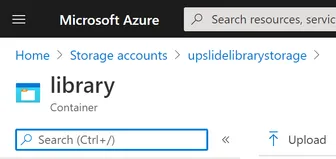
upslidelibrarystoragein our example). This Account can have several containers and various blobs stored in these containers. - We recommend you use a dedicated container for each UpSlide Library (
libraryin our example). Each element of the Library will correspond to one blob.
Set up the library
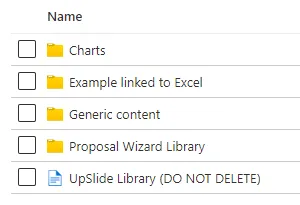
- Upload the library content to the container using Microsoft Azure Storage Explorer.
- Create a file named UpSlide Library (DO NOT DELETE) and place it in the Library root folder. UpSlide will use this file to store the latest modification date.
How do I manage access?
You can manage access to the container’s library using a Short Access Signature (SAS). You can generate it directly from the Azure Administration Portal:
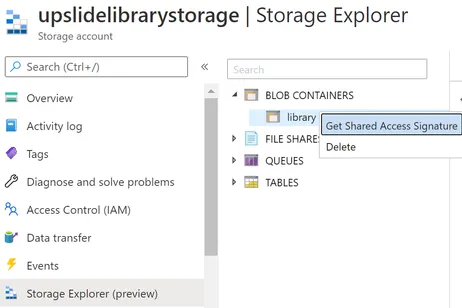
Open your Storage Account. In the left-side menu, select Storage Explorer and right-click on your Container > Get Shared Access Signature.
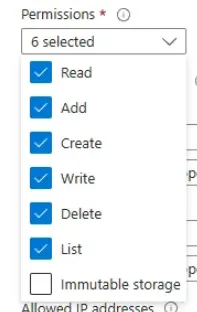
Set the start and end dates, check Read, Add, Create, Write, Delete, List permissions and click Create to generate the SAS token. Creating a token with these permissions ensures you don’t have to create a different token for administrator and non-administrator users.
Copy the generated QueryString and place it in the file azure-blob-storage-sas-token.json and send it to our team. We’ll encrypt it for you and include it in the installer so every user has access to the Library as soon as UpSlide is installed.

