Before Claude can search and insert Library content or generate slides using your layouts, an administrator must index the relevant libraries and generate layouts. This article guides UpSlide administrators through the indexing process.
Prerequisites
- An active UpSlide Administrator license with the UpSlide add-in installed
- Claude for PPT and Excel
- PowerPoint opens with the UpSlide add-in active
- Read and write access to the library location you want to index
Index libraries for content and layout generation
Indexing a library by using the “Layouts Generation” option runs two simultaneous processes:
- Content retrieval: analyzes your library’s content (slides, decks, shapes, images) to identify its topic.
This will be used by Library search & insert. - Layout analysis: analyzes selected libraries’ slides to extract their structures that Claude uses as a reference base.
This will be used to generate slides.
How to index your libraries
- Open PowerPoint and make sure the UpSlide add-in is active.
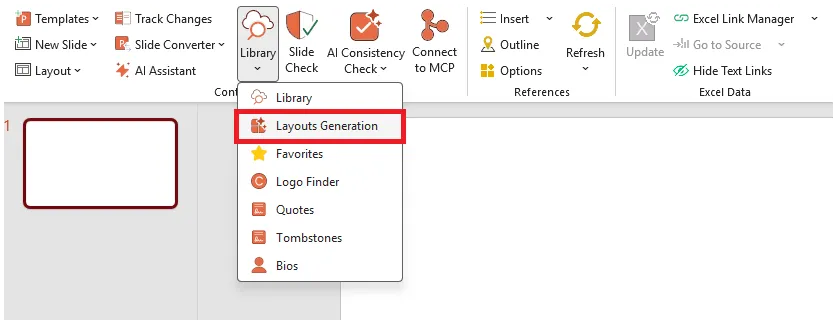
- In the UpSlide ribbon, click Library > Layouts Generation.
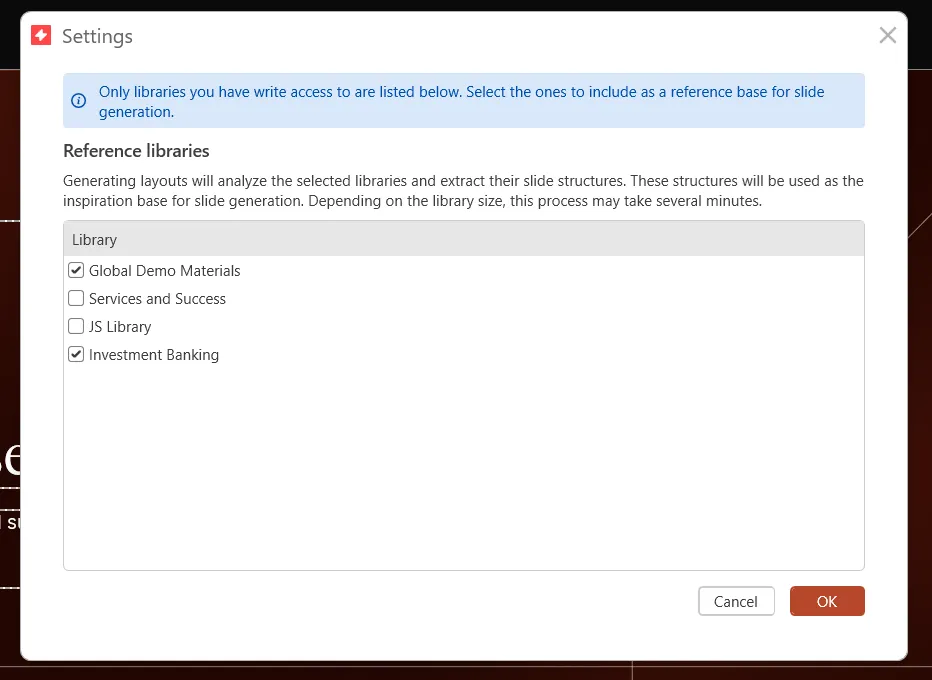
- A dialog opens listing all libraries you have write access to.
- Select the libraries to use as the reference base for slide generation, then click OK.
- A progress bar appears while both indexing processes run. Depending on library size, this may take several minutes.
- Once complete, a success notification confirms that the indexing has finished.
- If an error occurs, a failure notification appears instead.
Important information
Repeat the indexing step whenever your library content changes significantly to keep slide structures up to date.