Use Data Pack to share the figures behind a PowerPoint presentation without sharing the underlying working models. The Data Pack compiles all Excel-linked tables and charts from a given presentation into a standalone Excel workbook, including a table of contents and the data behind charts.
Before you start
Only tables and charts linked with the UpSlide Excel Link are included in the Data Pack.
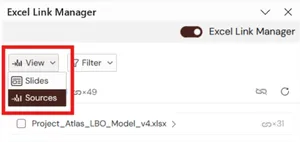
Before generating the Data Pack, we recommend opening the source workbooks linked to the presentation to avoid issues caused by sources being moved or renamed. Open the Excel Link Manager and set the View filter to Sources to see all the workbooks associated with the presentation. Open each of these files.
Update your links to check for pending issues, such as missing or multiple sources. If you see an error message after updating, refer to this article to resolve the issue. The Data Pack is still generated if errors remain, but a warning message appears.
Generate a Data Pack
To generate a Data Pack:
- Open your PowerPoint presentation.
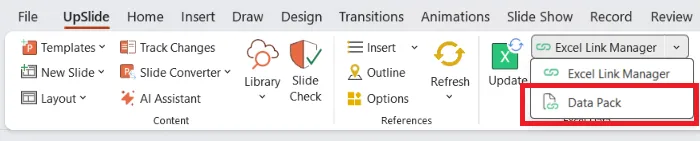
- Click the Excel Link Manager drop-down and select Data Pack.
- Enter the name of the Data Pack and the folder you’d like to save it under.
- Click Generate Data Pack. A pop-up window displays the generation progress. Any source file that was not opened before you started the process opens and closes automatically while UpSlide retrieves the data.
The Data Pack opens automatically once it has been generated so you can review its content.
Content and characteristics of the Data Pack
The Data Pack includes:
- A table of contents tab listing each slide title and number, with hyperlinks to the corresponding worksheets.
- One worksheet for each table or chart in the presentation.
- The original source formatting, including cell styles, fonts, number formats, and borders.
- The underlying data for charts.
The Data Pack is not linked to the original Excel workbooks. Changes made to the source files are not reflected automatically in the generated file.