Activating your UpSlide license is required to access all the features. This article explains how to activate your license for the first time and how to renew it when it expires.
Activate UpSlide for the first time
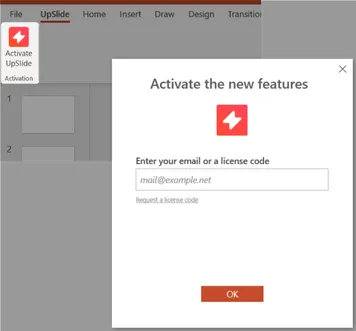
UpSlide will attempt to automatically activate your license automatically when you open a Microsoft Office application. If it doesn’t, follow the steps below to activate manually.
Before you start, make sure you have an active internet connection and that UpSlide is installed on your computer. To verify, go to Windows Settings > Apps > Installed Apps.
To manually activate UpSlide:
- Open PowerPoint, Excel, or Word.
- Navigate to the UpSlide tab.
- Click the Activate UpSlide button and enter your email address.
Troubleshoot activation errors
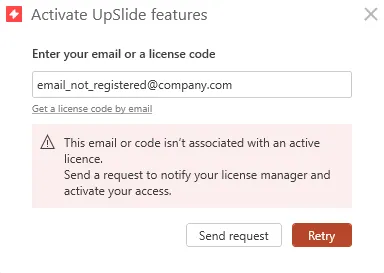
Your email address was not found in the list of authorized users
Root cause
Your email address has not yet been entered into our database, and you are not recognized as an authorized user by your organization.
Solution
- Click “Send request” to email the License Manager listed for your organization. You will be cc’d on this email and can follow up to get the UpSlide license.
- If this doesn’t work, please contact support@upslide.com and share the email address of a teammate who’s already using UpSlide to identify and redirect the request to your License Manager.
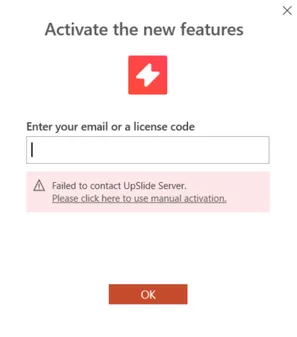
Failed to contact UpSlide Server
Root cause
UpSlide couldn’t contact our server to check whether your email address is associated with an authorized user.
If you are getting this error message, it could mean:
- You are using an obsolete version of UpSlide, which can’t communicate with our server for security reasons.
- You are not connected to the internet.
- Your IT network security is blocking communications between UpSlide and our server.
Solution
If you can access the internet in your browser, you’ll need to reach out to your IT team to resolve the issue. Ask them to:
- Reinstall UpSlide on your computer using the latest version available. Authorized users can download the installer from portal.upslide.net.
- Authorize communication with our activation server. The list of endpoints that must be authorized for UpSlide to work properly is available in this article.
Renew your license
Automatic renewal
UpSlide will automatically renew your license each year, provided that:
- Your email address is still part of the list of authorized users.
- You have renewed your UpSlide subscription for another year.
- UpSlide can communicate with our servers.
If any of the above is false, a pop-up will appear once a day for 3 days, offering the opportunity to renew the license.
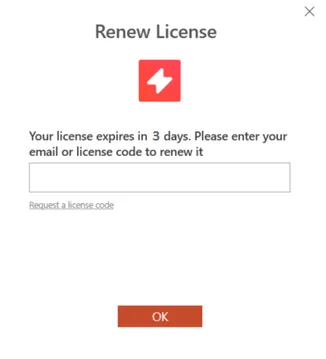
Otherwise, you can force the renewal by following the steps below.
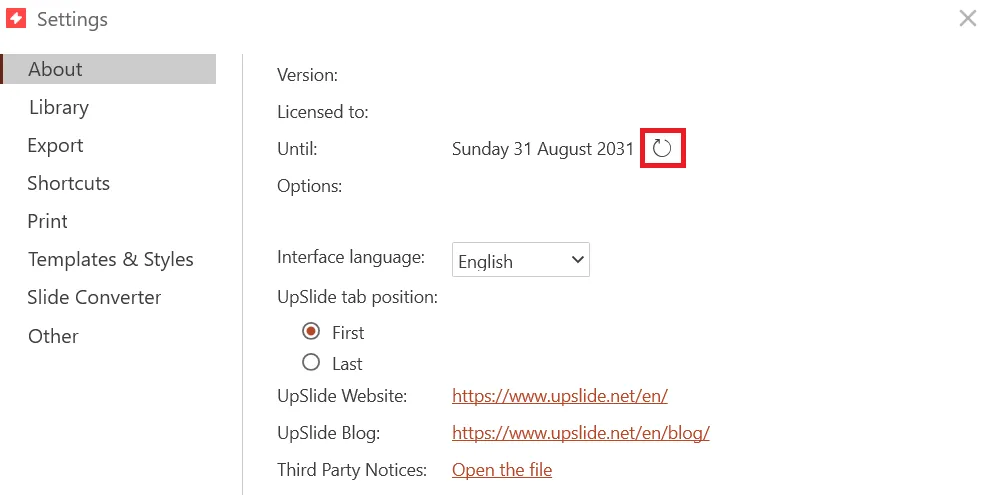
- Open UpSlide > Settings > About.
- Click the update symbol on the right of the end date.
- Enter their email address