Pitchly allows users to store, manage, and transform data into usable formats like UpSlide’s Tombstones. UpSlide integrates Pitchly as a Dynamic Library within PowerPoint, providing direct access to Pitchly's tombstones. This article outlines how to configure a Pitchly-based Dynamic Library within UpSlide.
How to connect UpSlide to Pitchly
Prerequisites:
- You will need a Pitchly account.
- You must be added to the relevant workspace by a Pitchly Administrator to allow you to use Pitchly’s tombstones in UpSlide.
Configuration Steps:
- Create a dedicated Dynamic Library in UpSlide: On the UpSlide portal, create a new Dynamic Library ( It will require access to our Portal ).
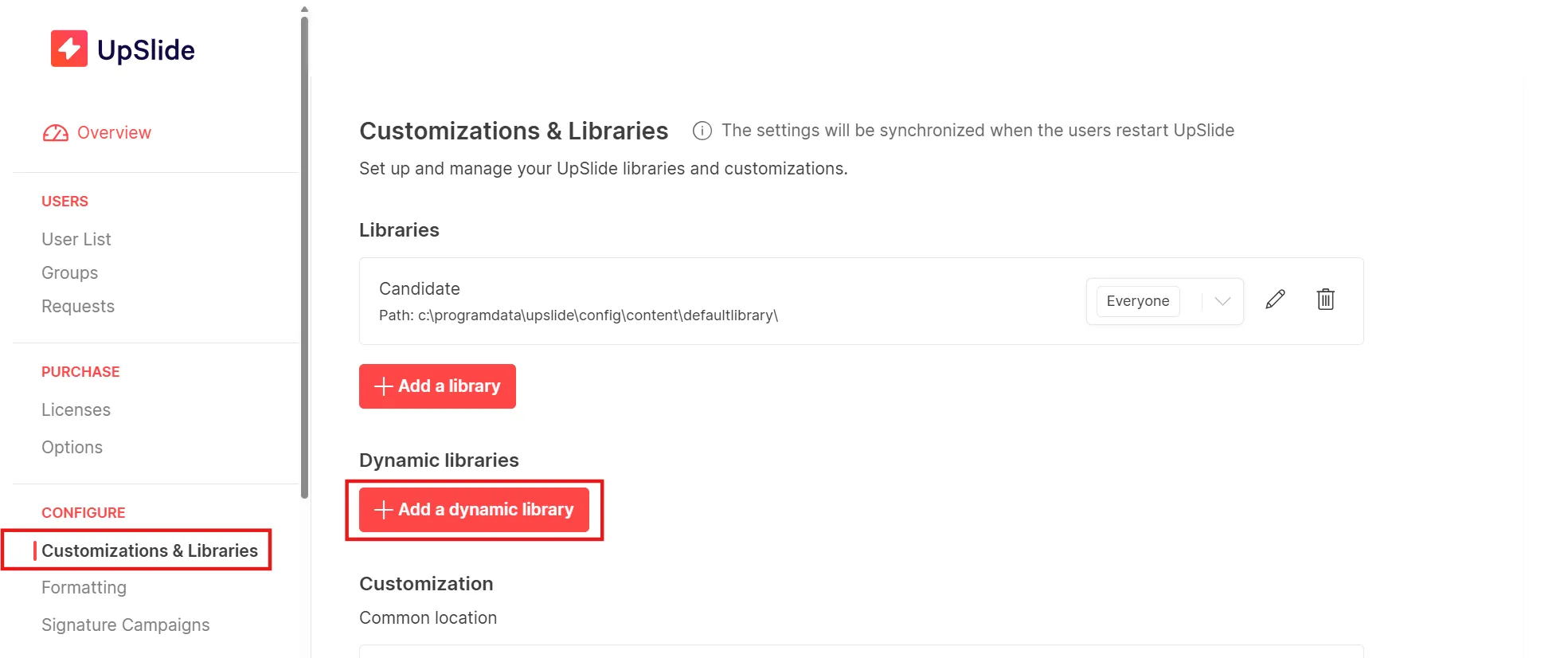
- Set the URL: Set the library’s URL to the Pitchly table URL. This can be copied from the browser address bar when logged into Pitchly.
Pitchly’s URL will use this format : https://platform.pitchly.com/workspaceID/tableID
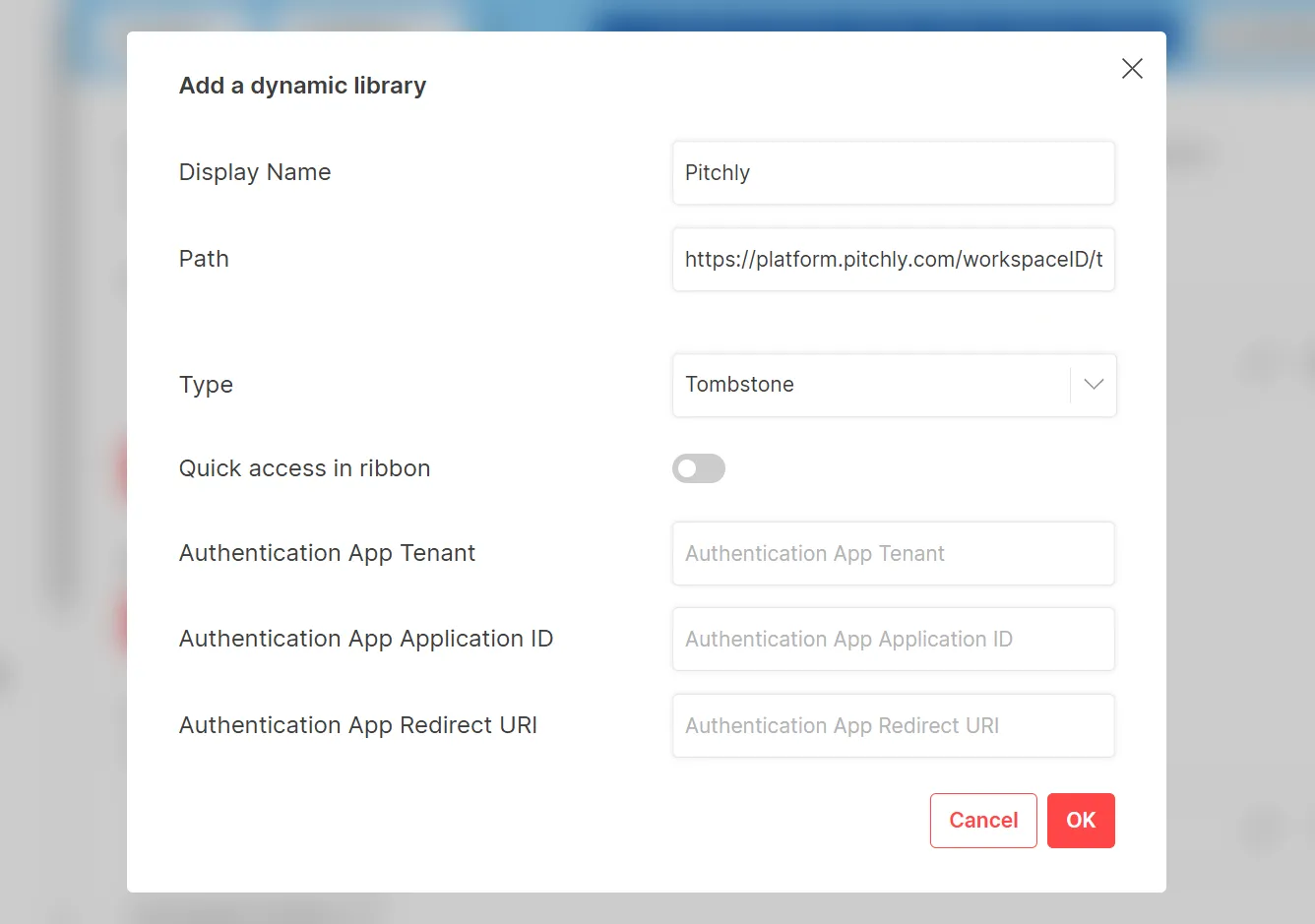
- Set the Application ID in UpSlide: Currently, a UpSlide developer needs to manually set up the application ID manually. Please contact our support team.
How to authorize UpSlide on Pitchly
Pitchly requires workspace administrators to authorize UpSlide before users can authenticate to a table. This authorization is typically done by initially loading a Pitchly Dynamic Library via UpSlide.