
With our Modeling features, you can stay organized while reviewing and presenting financial models.
Insert a table of contents
UpSlide can add a contents page to help users navigate a large model. Pressing Insert TOC in the Modeling section of the UpSlide ribbon will add a hyperlinked list of the visible worksheets to the selected cell and below.
The Table of Contents will automatically update when worksheets are renamed. You can move and format these hyperlinks to create more detailed agenda sheets. Sheets inserted after adding a Table of Contents will not appear, and the cells will not reorder if you move sheets in your workbook.
Explorer
The UpSlide Explorer pane helps you easily navigate through all open workbooks and sheets. You can:
- View all open workbooks and their sheets in a more user-friendly, tree-like structure
- Collapse or expand the names of sheets within a workbook by clicking on the name of the workbook
- Filter using text search on the sheets’ names
- Go to the desired sheet by simply clicking on it in the Explorer pane
To open or close the Explorer pane, click on the Explorer button in the Modeling section of the UpSlide ribbon or the shortcut: CTRL + ALT + X.
Autocolor
Autocolor is valuable for model builders who want to effortlessly distinguish between cells based on their cell type, as it applies temporary formatting to cells based on their contents. For example, cells containing formulas will be formatted differently from cells containing only text.
The following cell types can be formatted using Autocolor:
- Direct Inputs
- Text
- Numeric
- Date or Time
- Formulas
- Formula with plugs (hard-coded inputs)
- Formula with plugs and data from other worksheet
- Formula with plugs and data from other workbook
- Direct link
- Direct link with data from other worksheet
- Direct link with data from other workbook
- Any other formula
- Any other formula with data from another worksheet
- Any other formula with data from another workbook
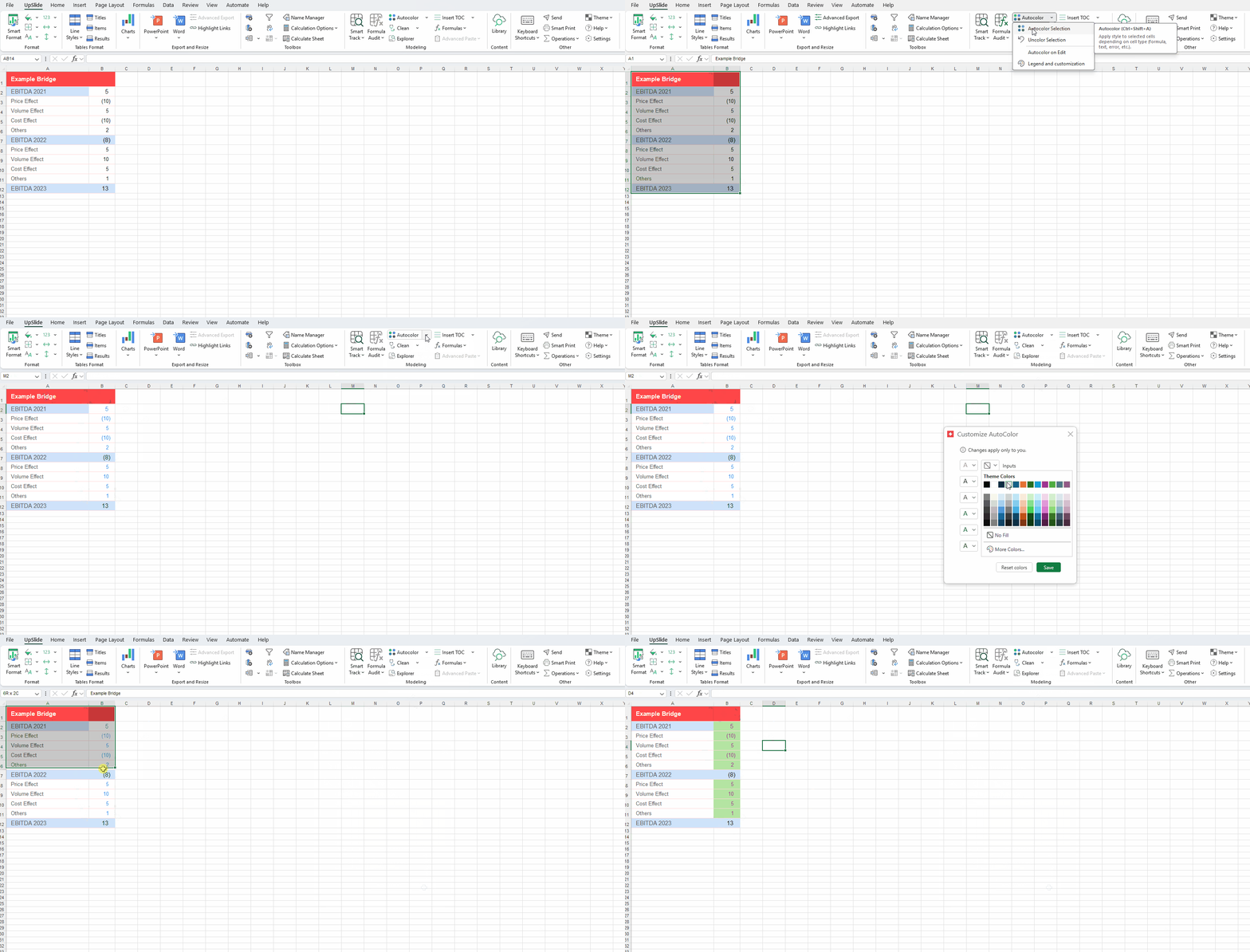
Apply it to existing content by selecting the desired range and clicking Autocolor in the Modeling group in the UpSlide ribbon (or press Ctrl + Shift + A).
To remove Autocolor, highlight the desired range, click the down arrow next to Autocolor in the UpSlide ribbon, and select Uncolor Selection.
You can also apply Autocolor as you model by selecting Autocolor on Edit from the Autocolor drop-down. To turn it off, click the button again.
When exporting to PowerPoint/Word using the UpSlide Link, the formatting will be undone, and the text will be exported as black. In most cases, this is desirable, but you can deactivate this option in the UpSlide settings if you wish.
From version 6.9.26 onward, you can customise the colors directly from your UpSlide ribbon.
From version 7.0.4 onward, you can now customize the background color, also using the Legend and customization button.
Please note that these changes are only visible to you and will not impact your default template.
Smart Track
With Smart Track, you can navigate your formula’s precedents and dependents with unprecedented ease. Using the mouse or the intuitive keyboard controls, drill down to the user inputs and back up to your formula in an instant. This can be a life saver whether you are discovering a new file, analyzing an unexpected result or hunting down inconsistencies. It is both incomparably faster than Excel’s Trace precedents/dependents feature, and much more ergonomic than Excel’s evaluate formula.
From version 7.0.3.5 onward, you can apply Smart Track across a range of multiple cells and trace the precedents or dependents of all simultaneously.
The smart track panel displays:
- The currently tracked cell(s)
- The cell’s value and formula
- A tree of precedents or dependents with the respective values and formulas
If you click a precedent/dependent in the list, UpSlide will automatically select and display it, even if the range is on another workbook or worksheet.
When launched, Smart Track will apply colors depending on the cell type
- Cyan for the last audited cell
- Pink for precedent cells
- Orange for dependent cells
Based on an output cell that displays an error, let’s see how to audit the formula and correct it to get the proper calculations.
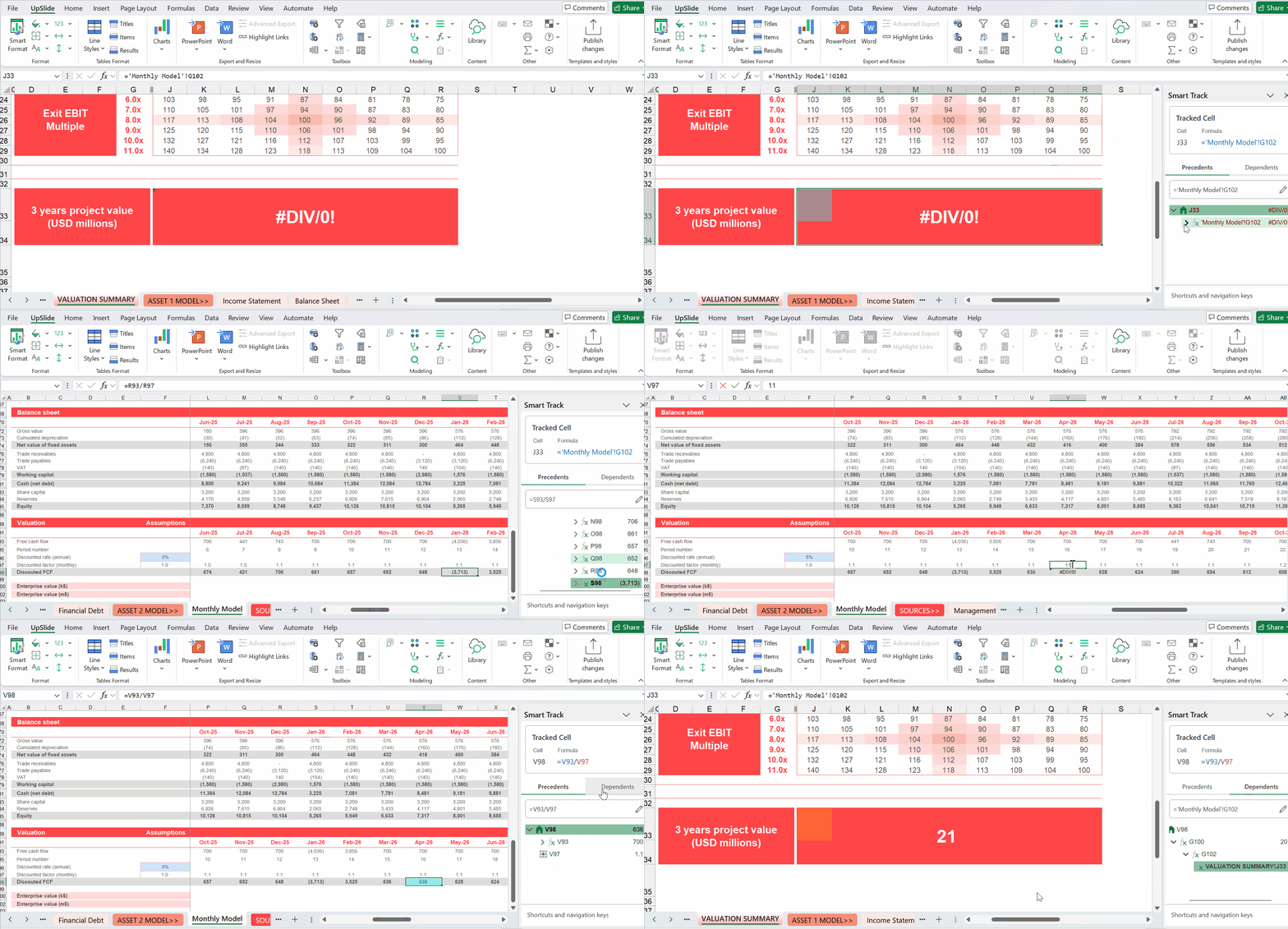
To take full advantage of Smart Track, we recommend using the keyboard shortcuts listed below.
- CTRL + SHIFT + K will open the smart track pane and analyze the precedents of the selected range
- CTRL + SHIFT + L will open the smart track pane and analyze the dependents of the selected range
- CTRL + SHIFT + J will open the smart track on the last audited cell with the last used mode (precedent or dependent)
- With Up and down arrows you can go through the precedent/dependent list of the current node
- The Right arrow will expand the selected node and display its precedents/dependents
- The Left arrow will close the expanded list of the selected node or select the selected node’s parent
- The F2 key will let you edit the currently tracked cell
- The Escape key will select the currently tracked cell (N10 in the example), give focus back to the Excel worksheet and close the smart track pane
- The Enter key will give focus back to the Excel worksheet and close the smart track pane
Formula Audit
Formula Audit allows modelers to visually detect inconsistencies in formulas across cells. It applies highlights to each cell - stripes for consistent formulas and full fill for inconsistent ones - making it easier to spot and correct errors that might otherwise go unnoticed. Formula Audit helps ensure formula integrity and supports quick troubleshooting during spreadsheet reviews.
To audit your formulas:
- Selecting the desired range and clicking Formula Audit in the Modeling group in the UpSlide ribbon (or press Ctrl + Shift + Alt + W).
- Review the results. Stripes indicate that cell’s formula is consistent with its neighbor’s; full fill indicates that there is a discrepancy between them.
To remove the highlights, select Clear Visualizations from the Formula Audit dropdown in the UpSlide ribbon.