Generate dynamic content pages, section dividers, and subsection trackers that update automatically with the Table of Contents. Follow the steps below to insert a Table of Contents, organize your presentation with sections and subsections, and maintain structure using the Outline pane.
The automatic Table of Contents requires an UpSlide template. See our article Accessing your on-brand templates through UpSlide for more information on how to convert your presentation to an UpSlide template using Slide Converter.
Summary
- Insert a Table of Contents
- Structure your presentation with sections and subsections
- Restructure your presentation using the Outline pane
- Refresh automated elements
- Customize your presentation’s automation settings
Insert a Table of Contents
To add a content page to your presentation, go to Insert on the UpSlide tab and select Insert Table of Contents from the drop-down menu.
The content page will be inserted as a new slide after the currently selected slide, displaying the item in your presentation. The items can be sections, subsections, slide titles, or indexes. The content depends on what was set for your template.
- If the Table of Contents is too long to fit on a single slide, it will automatically split into additional slides or a two-column contents page.
- Only one Table of Contents can be inserted per presentation. If a content page has already been added, clicking the Insert Table of Contents button simply takes you to this slide.
Structure your presentation with sections and subsections
Divide a presentation into sections
UpSlide sections use divider slides to mark the beginning of each section and organize your presentation structure. Each divider slide is automatically formatted according to your company template and typically displays the section name and section number. When you add or modify sections, the Table of Contents updates automatically.
To add a section divider:
- In the slide thumbnail pane (left panel), click between the slides where you want the new section to begin.
- In the UpSlide tab, click Insert > Section or press Ctrl+Shift+S.
- A pop-up appears. Type the name of your section.
- If you’d like to add more than one section, click Add a section and write the additional section’s name in the new field.
- When you’re done, click Insert or hit Enter.
The section divider is inserted immediately, and your Table of Contents slide updates to reflect the new section structure.
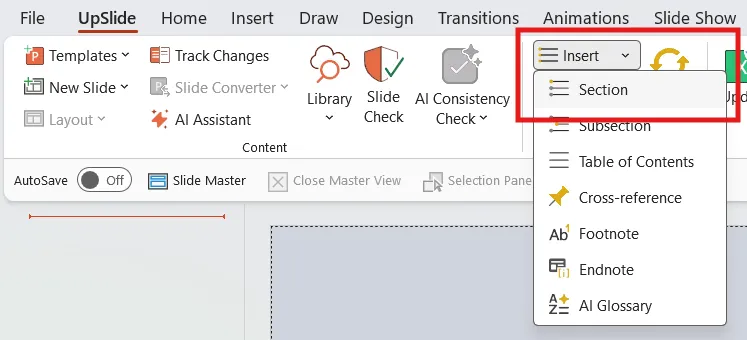
These additional options can be selected as you type the name of your section:
- Unnumbered sections. Select this option in the pop-up to create a section without a number. Depending on your template’s options, these sections might not appear in the Table of Contents numbering.
- Appendix sections: Check this option to designate the section as an appendix. Depending on your template configuration, appendix sections may be excluded from the main Table of Contents or displayed differently from regular sections.
You can remove the section from the presentation by deleting the divider slide. Those two actions can be executed using the Outline pane.
Insert subsections
Subsections provide additional structure within your sections, allowing you to organize content at a more granular level. Depending on your template configuration, subsections may use divider slides similar to sections, appear only in the Table of Contents and breadcrumbs, or be completely disabled.
If your template uses subsection dividers, you can add them by following the steps below.
- In the slide thumbnail pane (left panel), click between the slides where you want the new section to begin.
- In the UpSlide tab, click Insert > Subsection from the drop-down menu, or press Ctrl+Shift+B.
- A pop-up appears. Type the name of your subsection and click Insert or hit Enter.
The subsection is inserted immediately, and any subsection breadcrumbs in your presentation update automatically.
If there are no subsection dividers in your presentation, follow the steps below to insert a subsection into your presentation:
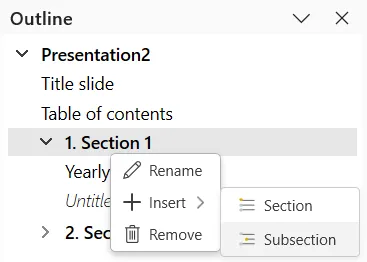
- In the UpSlide tab, click the Outline button. The Outline pane displays the layout of your current presentation, including section and slide titles.
- Right-click on an element, then click Insert > Subsection.
- A pop-up appears. Type the name of your subsection and click Insert or hit Enter. The subsection will be inserted after the element.
Rename sections and subsections
You can rename sections and subsections by navigating to the section or subsection divider slide and updating the title directly in the slide.
If your template doesn’t have dividers, you can rename your elements by going to the Outline pane, right-clicking the element, and selecting Rename.
Do not rename sections from the Table of Contents slide. Changes made there will not be overwritten when you refresh. You’ll have different titles in the Table of Contents and on the divider slides.
Restructure your presentation using the Outline pane
The Outline pane provides a visual overview of your entire presentation structure and lets you reorganize sections, subsections, and slides through drag-and-drop. This is particularly useful when managing complex presentations or restructuring content across multiple sections.
You can move a slide into a different section by dragging it below the target section name. To move an entire section, drag the section name to a new position.
Click Refresh to update all automated elements once you’ve structured your presentation to your liking.
Refresh automated elements
After making structural changes to your presentation, such as adding, removing, renaming, or reordering sections, subsections, or slides, you must refresh to update all automated elements.
Elements updated automatically in your presentation include:
- Table of Contents,
- Sections, subsections, and slide titles,
- Slide numbers,
- Cross-references,
- Footnotes or endnotes.
Customize your presentation’s automation settings
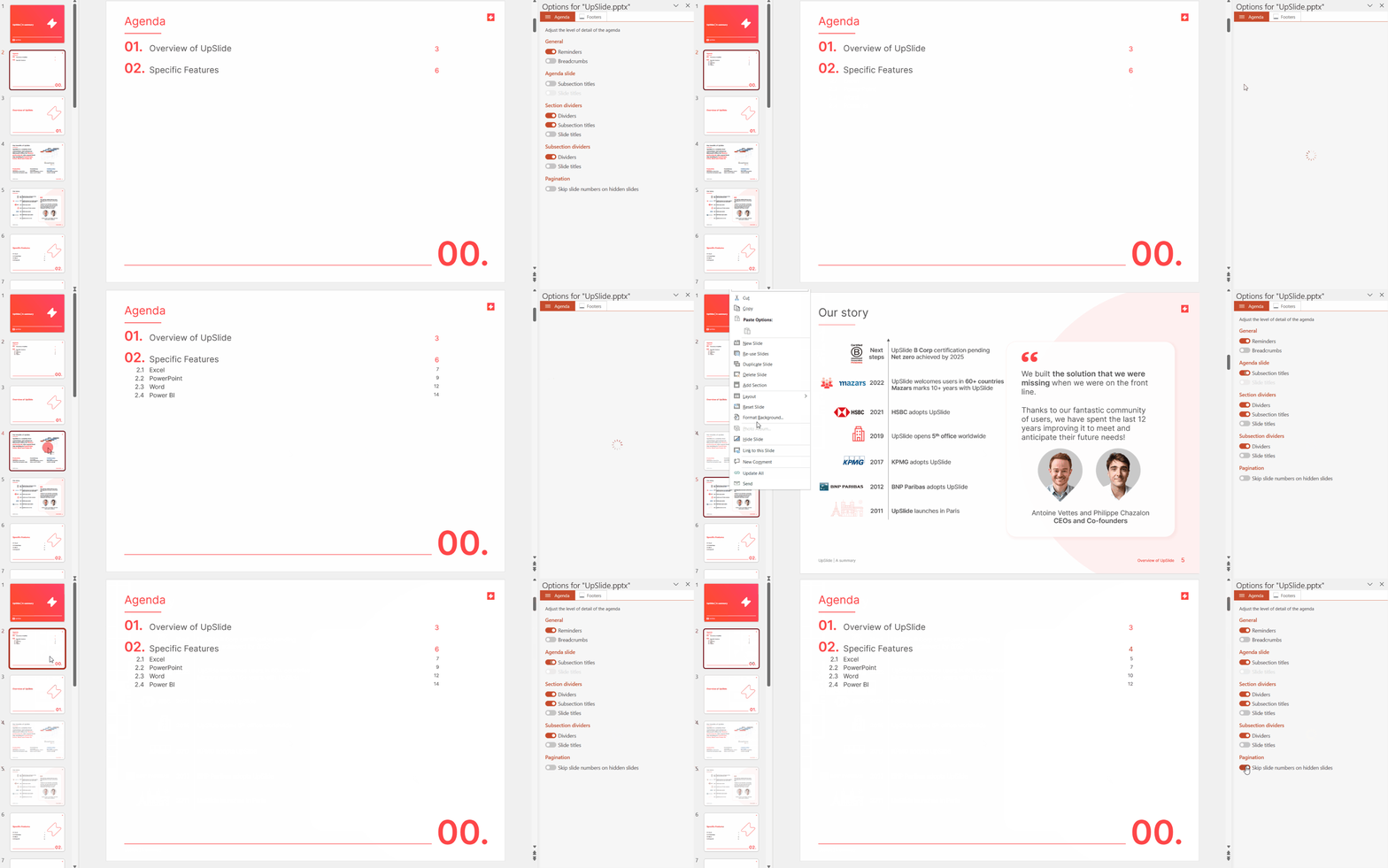
UpSlide allows you to customize which automated features are active in your presentation and how they behave. These settings control elements like the Table of Contents, section dividers, subsection dividers, and automated trackers. Open the menu by clicking Options in the References section of the UpSlide ribbon.
By toggling the different options, you can choose which elements should be displayed on your dividers.
Reminders
The exact content and formatting of reminder shapes depend on your company template configuration. They usually display the title of the current section or subsection on each slide, helping your audience understand where they are in the presentation structure.
Breadcrumbs
Breadcrumb shapes show the entire presentation structure by listing all section titles on each slide, with special formatting applied to highlight the current section.
If your section contains subsections, the breadcrumbs display will automatically switch to displaying subsection titles instead of section titles.