Use the UpSlide Library to quickly find the content you need in PowerPoint, Excel, or Word. This article focuses on the Library's structure and how to browse folders and collections
The Library’s structure
The Library is organized as follows:
- A Library contains folders.
- Folders can contain subfolders or collections.
- Collections contain one or more items of the same type. The Shapes collection selected in the example below contains shapes and cannot contain slides or whole documents.
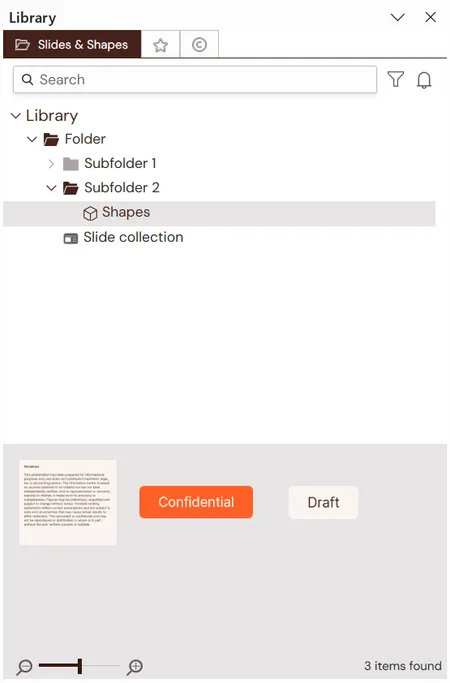
Select a collection or folder to display all the items it contains in the grey pane at the bottom of the Library. Double-click an item to insert it into your document.
In PowerPoint, you can use the Library to store:
- Shapes and text boxes.
- Single slides and decks of slides.
In Word, you can use the Library to store:
- Shapes and text boxes.
- Paragraphs of text.
- Word documents.
In Excel, you can use the Library to store:
- Shapes and text boxes.
- Single and multiple sheets.
- Excel workbooks.
Shapes and text boxes are available in all three applications. If you add a shape to the Library from PowerPoint, you can also use it in Word and Excel. Use the icons below to identify each collection of items.
| Shapes/text boxes | Slides/Deck of slides | Text | Documents | Worksheets | Workbooks |
|---|---|---|---|---|---|
 |  |  |  |  |  |
Browse the Library
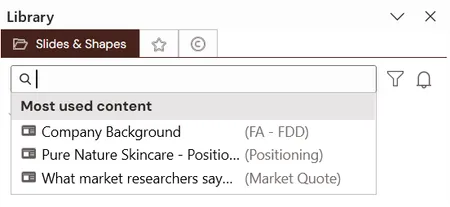
Use the search bar to quickly find the content you need. UpSlide searches folder names, item names, and text within slides or objects. When you select the search bar, UpSlide displays your most recently used items.
You can also filter the Library by content type. Select the filter icon at the top-left corner of the pane to narrow down your search.
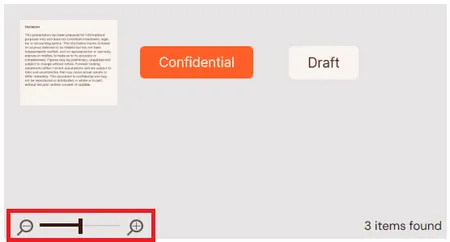
Resize the preview pane and adjust the scale at the bottom-left corner of the pane to change the preview size. Hover over an item to display a larger preview.